Help Center

Support.

Everything you need to install, run and activate your VINAI instruments. Grab the latest installers, read the manuals, follow the setup steps, or reach the team directly.

VST3AU macOSWindows 64-bit
01 — Downloads

Get the installers.

Latest builds for every instrument, macOS and Windows. Sign in to your account to download the plugins included in your licence or the full suite.
Note Direct installer links unlock at launch — every licensed build is also delivered by email and from your Account page.
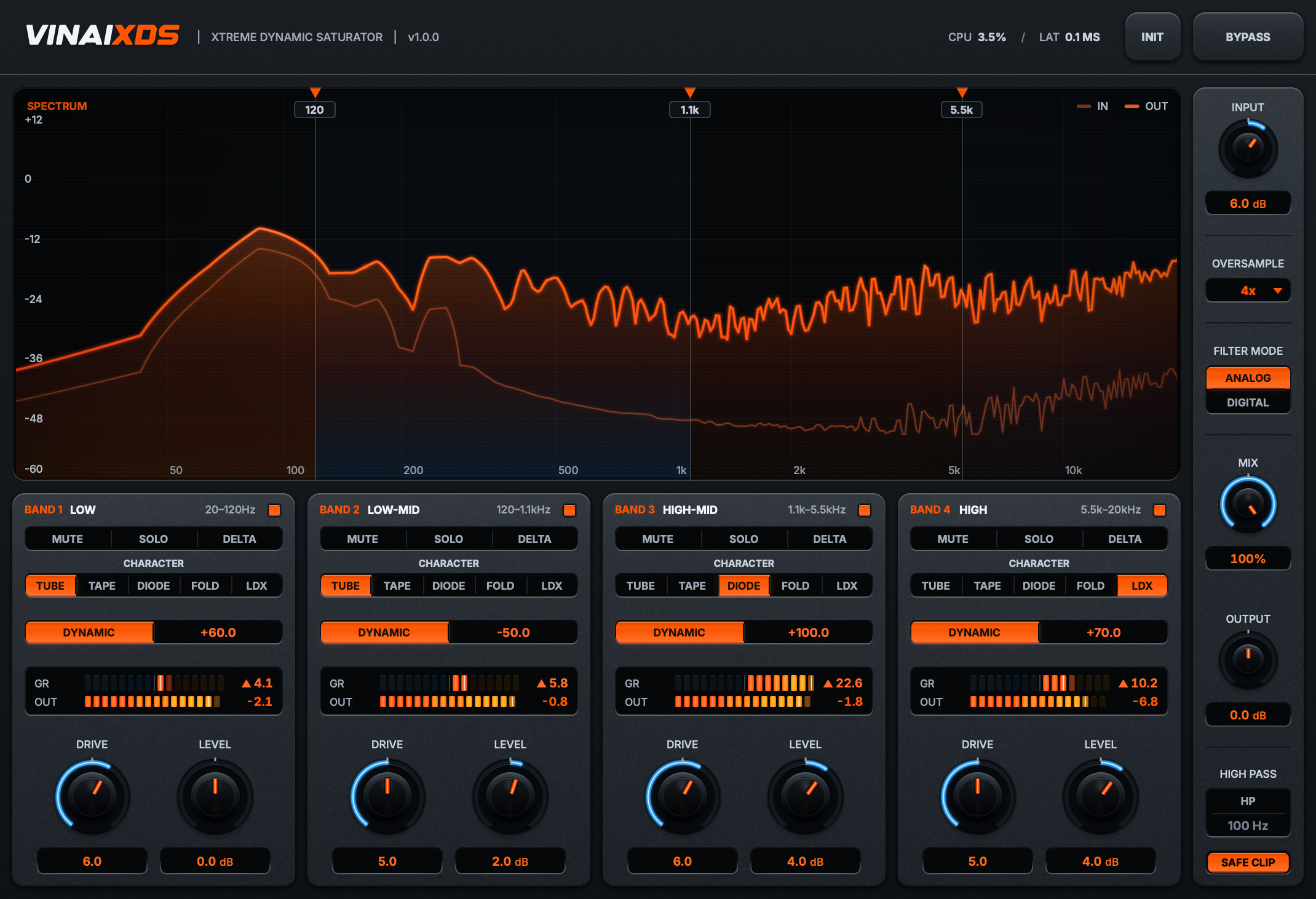
VINAIxds interface
VINAIXDS
Xtreme Dynamic Saturator

Four-band parallel distortion, five characters per band, real-time analyzer.
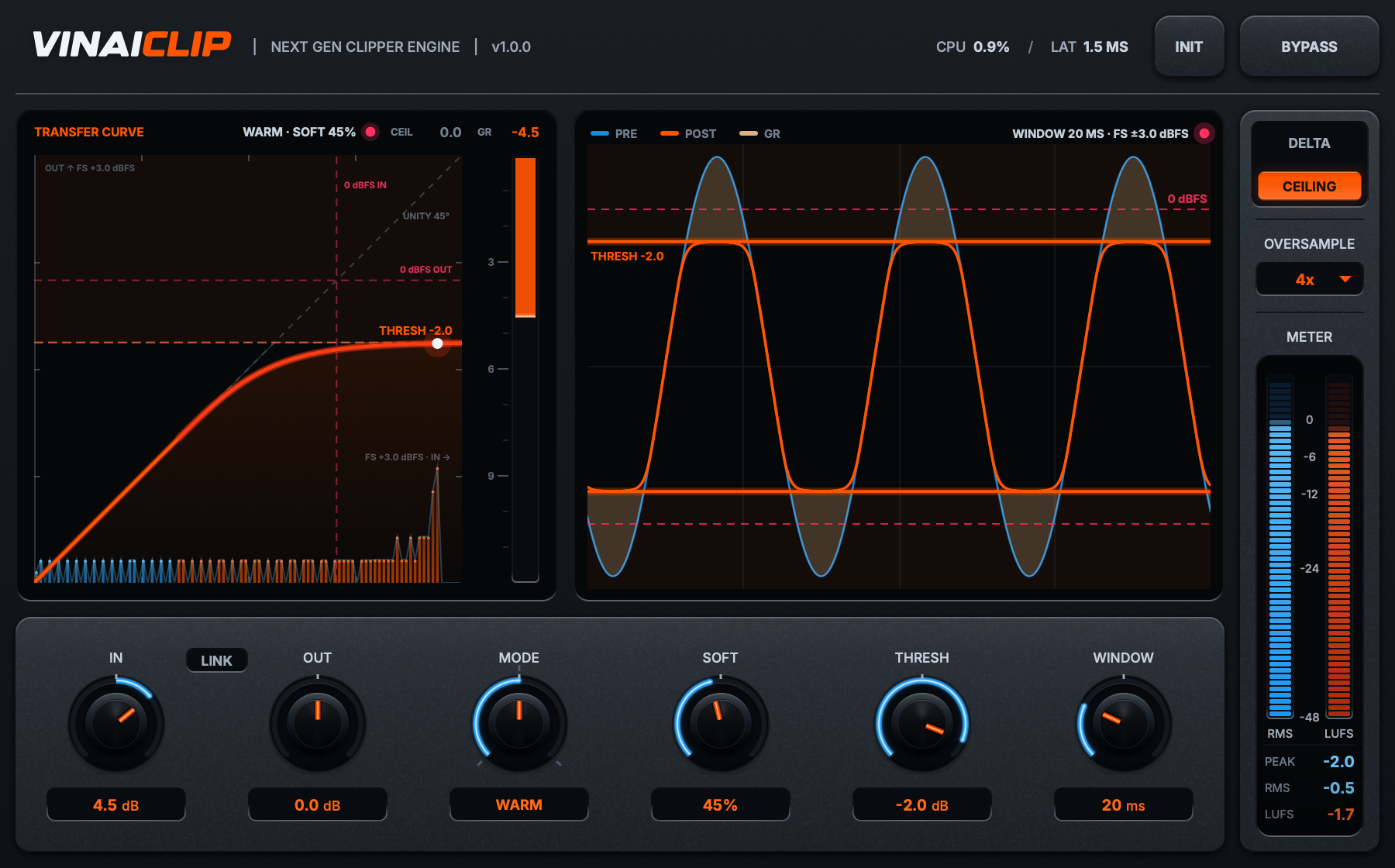
VINAIclip interface
VINAIclip
Next Gen Final Clipper

Four clip algorithms, true-peak protection, up to 32× oversampling.

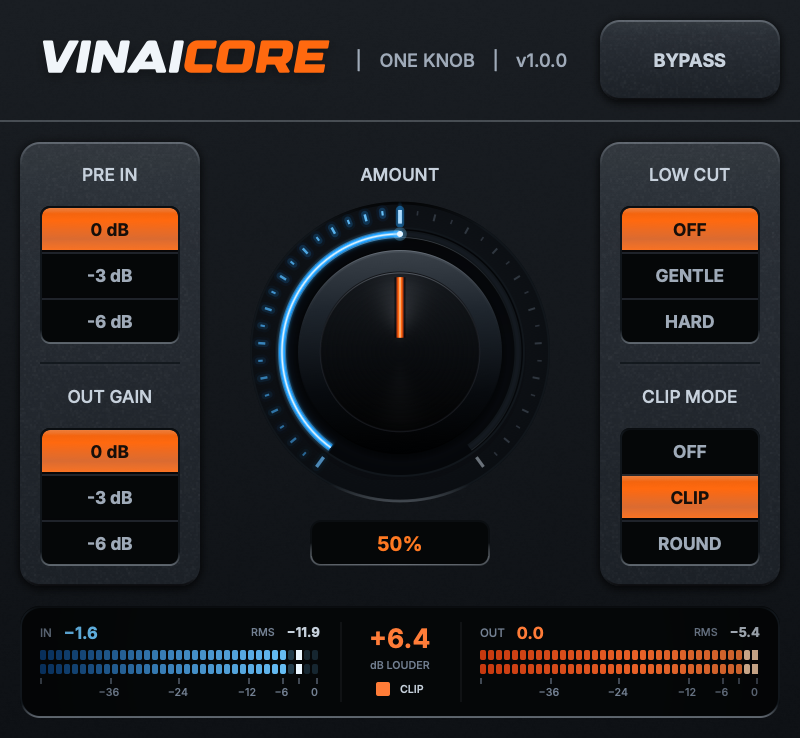
VINAIcore interface
VINAIcore
One-Knob Maximizer

Three-band saturation, dynamics and safety clipping from one control.

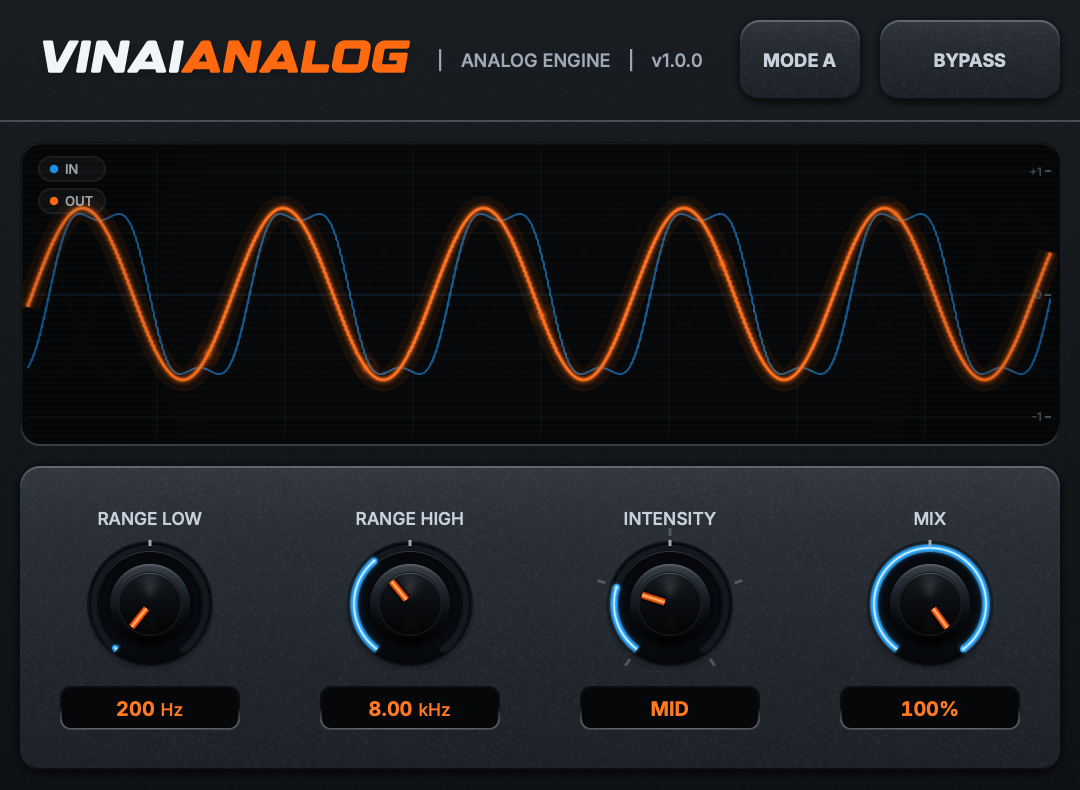
VINAIanalog interface
VINAIanalog
Unique Analog Cohesion Engine

The dimensional phase character of vintage analog signal paths.

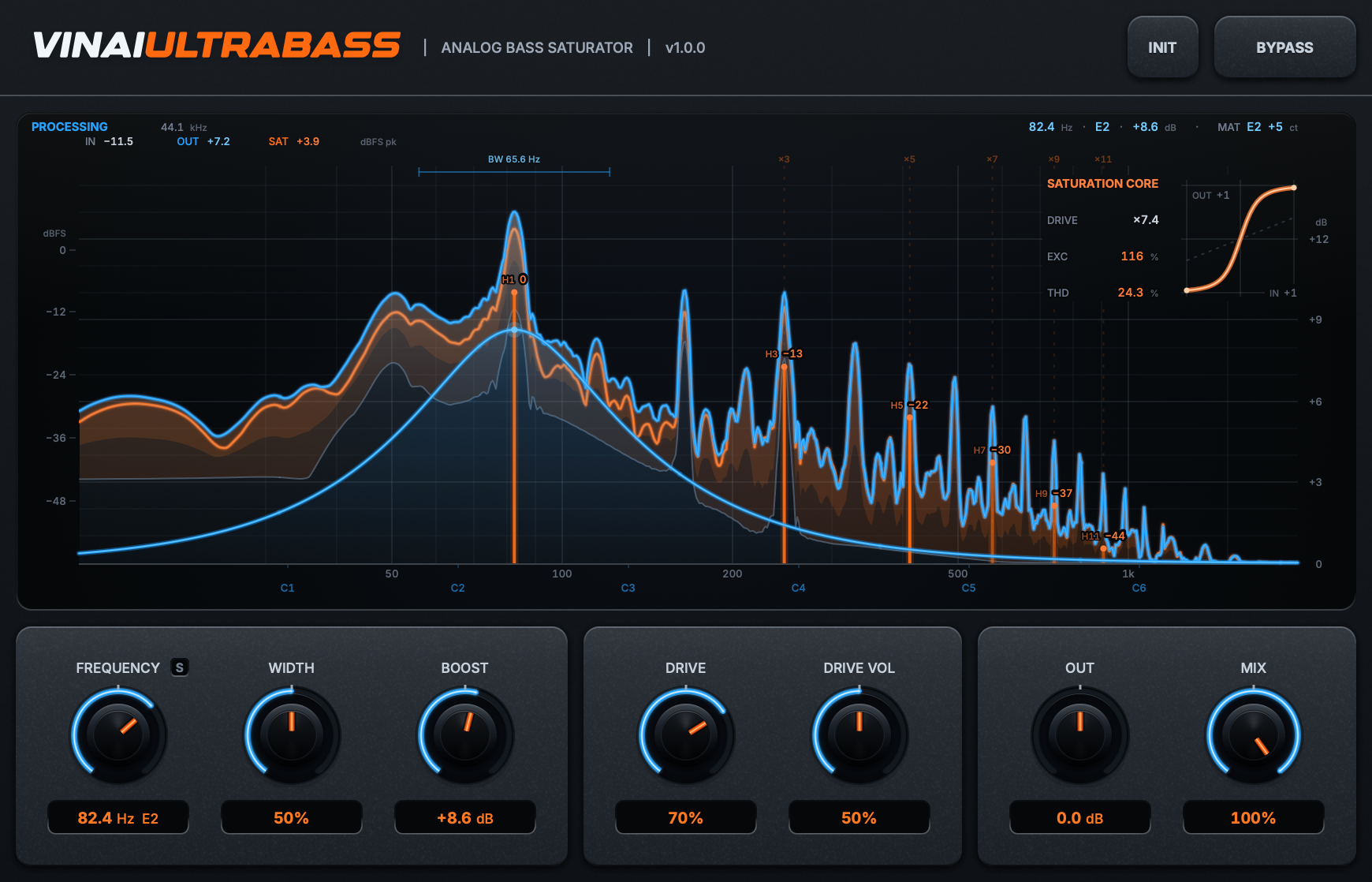
VINAIultrabass interface
VINAIultrabass
Harmonic Bass

An intelligent tonal enhancer plus an odd-harmonic saturation engine.
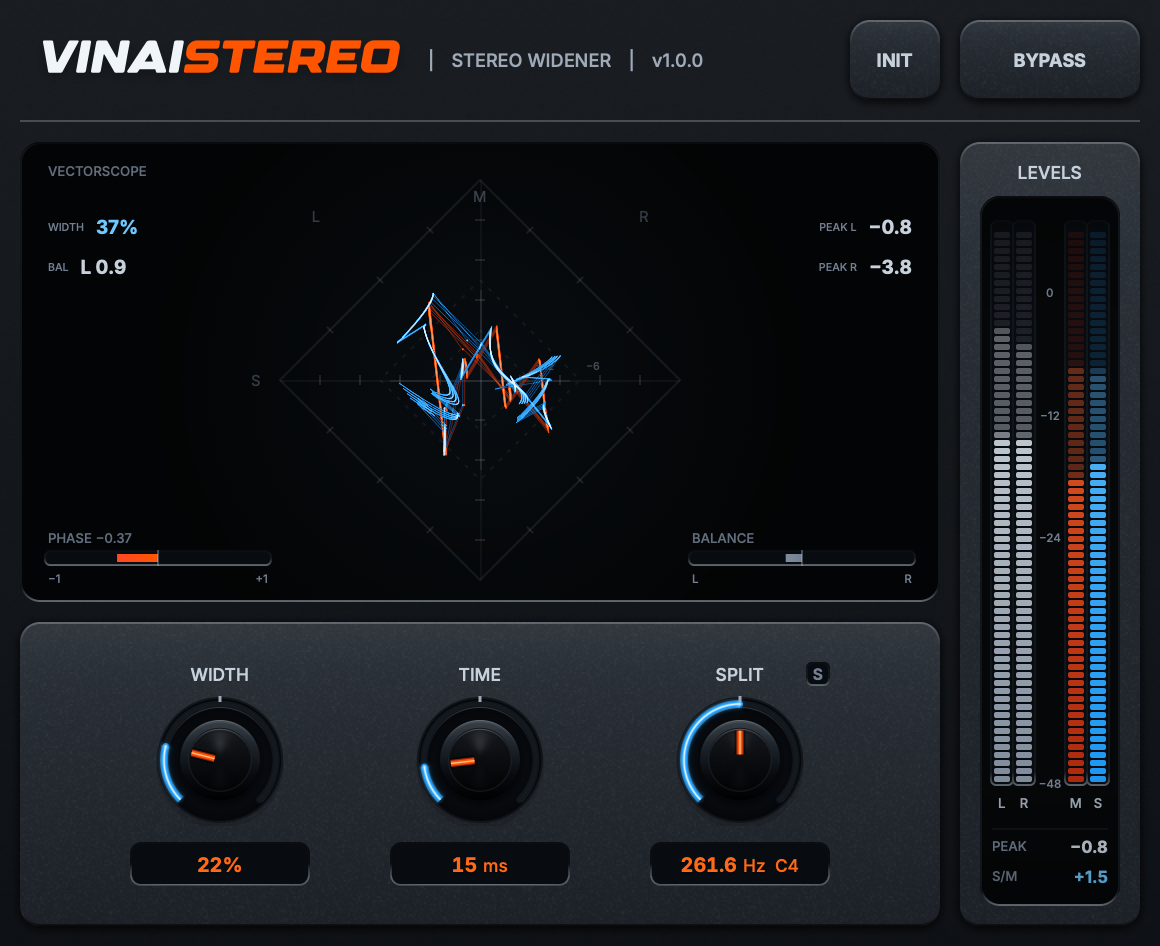
VINAIstereo interface
VINAIstereo
Stereo Widener

WIDE and HAAS engines, detune and a routable wobble LFO.

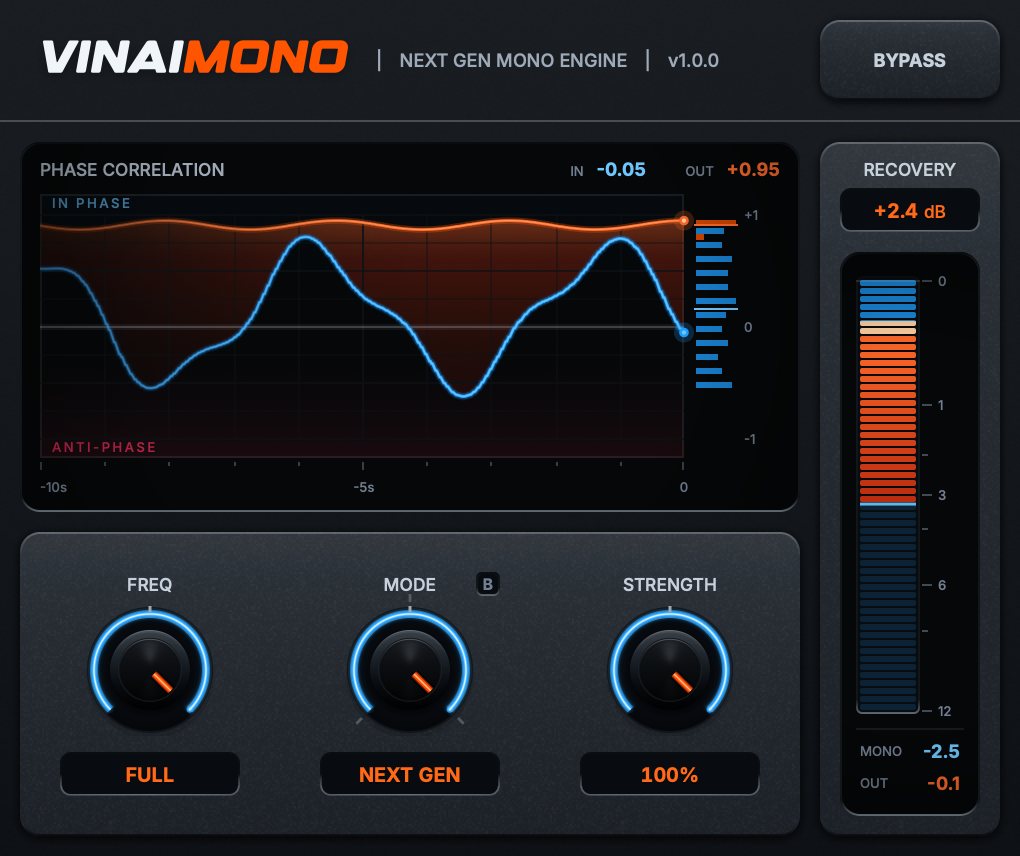
VINAImono interface
VINAImono
Next Gen Mono Engine

Dual-band mono recovery that rebuilds energy lost to phase conflict.
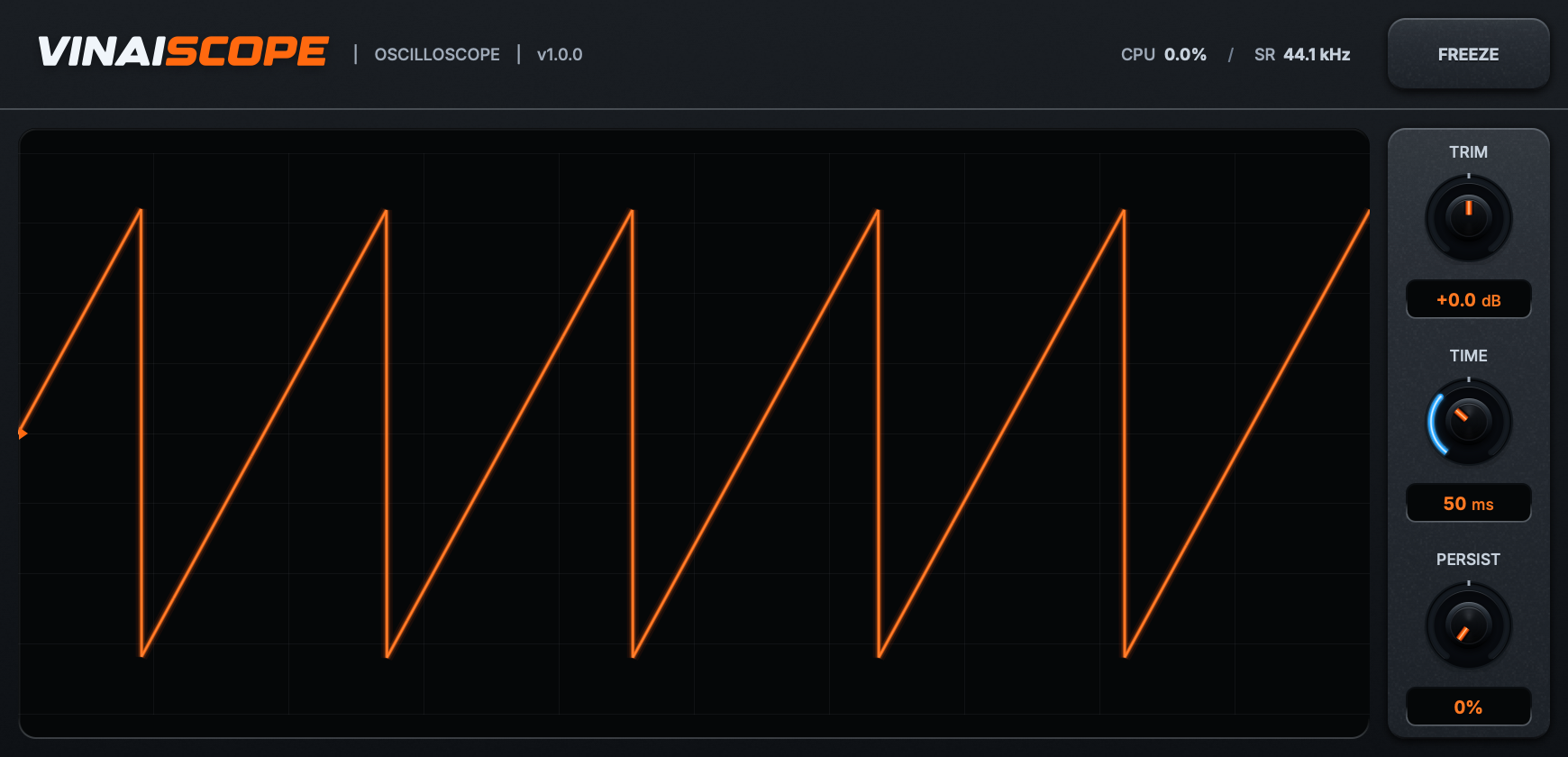
VINAIscope interface
VINAIscope
Visual Oscilloscope

A bit-transparent real-time waveform analyzer with phosphor persistence.
02 — Manuals

Read the docs.

A complete PDF manual for every instrument — signal flow, every control, and the workflow recipes the suite was built for.

VINAIXDS — Multiband DistortionOpen manual
VINAIclip — Final ClipperOpen manual
VINAIcore — One-Knob MaximizerOpen manual
VINAIanalog — Analog Cohesion EngineOpen manual
VINAIultrabass — Harmonic BassOpen manual
VINAIstereo — Stereo WidenerOpen manual
VINAImono — Mono ToolOpen manual
VINAIscope — OscilloscopeOpen manual
03 — Install & Activation

Up and running
in minutes.

VINAI plugins install as standard VST3 (and AU on macOS). Run the installer, rescan in your DAW, and you're ready. No dongle, no always-on connection.

macOS

Install on macOS.

Open the macOS installer and follow the prompts. The plugins are placed in the standard system folders so every DAW can find them.

  • VST3 → /Library/Audio/Plug-Ins/VST3
  • AU → /Library/Audio/Plug-Ins/Components
  • Requires macOS 11+ · Universal (Apple Silicon & Intel)
  • Launch your DAW and rescan plugins — Logic validates AU automatically
Windows

Install on Windows.

Run the Windows installer (.exe). VST3 is copied to the shared system folder that every modern host scans on startup.

  • VST3 → C:\Program Files\Common Files\VST3
  • Requires Windows 10+ · 64-bit host
  • Rescan plugins in your DAW (Ableton, FL Studio, Cubase, Studio One)
  • If a plugin doesn't appear, confirm the VST3 folder is in your DAW's scan paths
Activation

Three steps to activate.

1 — InstallRun the installer for your platform; the plugins land in the standard VST3 / AU folders above.
2 — RescanOpen your DAW and rescan its plugin list. VINAI instruments appear under the VINAI manufacturer name.
3 — ActivateLoad any VINAI plugin and follow the one-time activation prompt with the licence tied to your account. Offline activation is supported — no always-on connection required.
04 — Contact

Still stuck?
Talk to us.

If an installer, activation or a plugin behaves unexpectedly, send the details — your OS, DAW and plugin version — and we'll get you sorted.

Email support — the fastest way to reach the team. Include your order reference if it's about a licence. Write to support@vinaiplugins.com.

Before you write — check the manual for your plugin and the FAQ first; most questions are answered there.